What the heck is systemd services
Shallow dive into linux systemd
When I started using Vagrant (a VM orchestrator), some weird commands like systemctl kept appearing, and they made me curious about what they were and how they worked. Diving deeper into my research, I discovered something called systemd.
“WHAT THE HELL IS SYSTEMD”? I asked myself calmly.
So, I’m writing this up to try to make a little sense of this weird manager, with a special focus on the part I kept running into the most: services.
Starting point: systemd
systemd is an open-source project that provides a system and service manager used by many Linux distributions. It is responsible for managing many parts of the system’s userspaces and coordinating the boot process.
When the system boots, the Linux kernel starts the first userspace process. On a systemd-based distribution, this process is systemd, which runs as PID 1.
From that point on, systemd is responsible for bringing the userspace system up and coordinating many system components. Among other things, it can:
- start and supervise services;
- mount filesystems;
- manage dependencies between system components;
- activate sockets and timers;
- coordinate devices and targets;
- work with companion components such as
systemd-networkdandsystemd-journald, when they are used.
The first item on that list is services. But, Camily, what is the definition of a service on Linux?
What is a service and some terms
A Linux service is a system function or capability provided by one or more processes, usually without direct user interaction.
A service is often implemented by a background process that we call a “daemon”.
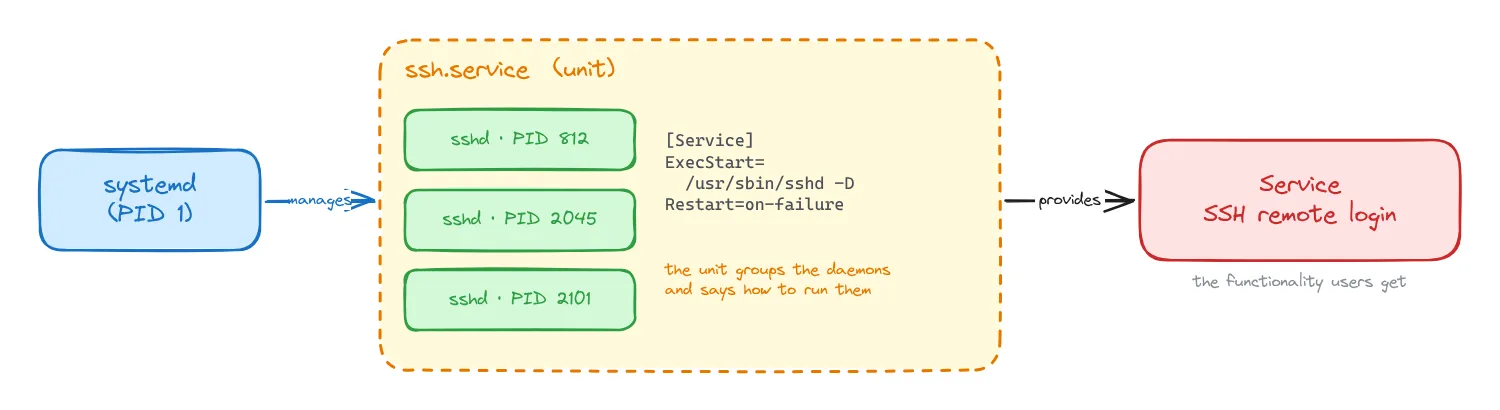
In systemd, services are managed through service units. A service unit is one specific type of systemd unit, identified by the .service extension, such as ssh.service.
So, the service is the functionality being provided, while the service unit is the object that systemd uses to describe and manage that service.
Notice that there is an important distinction between a program, a process, a daemon, and a service. So let’s clarify some terms:
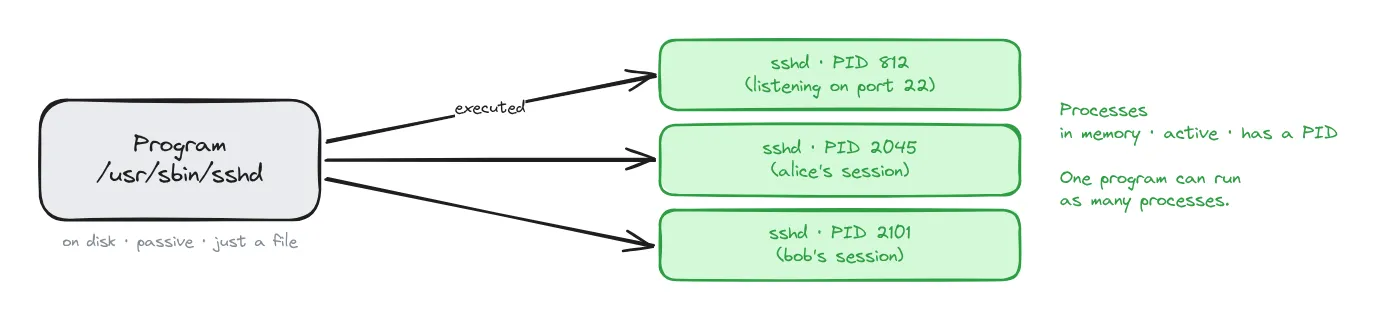
- Program: executable code stored on disk, for example
/usr/sbin/sshd. - Process: a running instance of a program.
- Daemon: a process designed to run in the background, usually for a long period of time.
- Service: the functionality being provided, usually by one or more daemon processes.
- systemd unit: a generic object representing something that
systemdknows how to manage.
The first two are easy to see: the program is just a file on disk, and every time it is executed, the kernel creates a new process from it, with its own PID. One program can even run as many processes at the same time: sshd, for example, creates a new child process for each SSH connection.
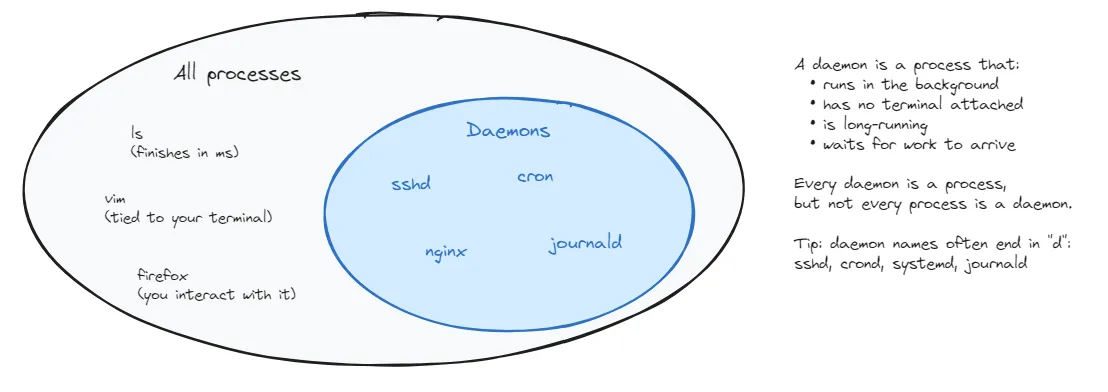
“I don’t get the difference between a daemon and a process!”
A daemon is a process.
The term process describes what it is from the operating system’s perspective: a running instance of a program.
The term daemon describes the role and behavior of that process: it usually runs in the background and provides some persistent functionality.
For example, when /usr/sbin/sshd is executed, the kernel creates an sshd process. Because that process runs in the background waiting for SSH connections, we call it a daemon. (That’s also where the name comes from: the “d” in sshd stands for daemon.)
And the sshd processes together provide the service: SSH remote login. But systemd doesn’t manage that service directly. It manages it through a unit, in this case ssh.service,which describes how that service should run.
“Wait, if the daemon is sshd, why is the unit called ssh?”
Because the unit name is just a naming choice of each distribution. On Debian and Ubuntu, the unit is called ssh.service, but it runs sshd. That’s why the command is
systemctl start ssheven though the process you see in ps is sshd.
On Fedora, RHEL and Arch, the unit is called sshd.service, so the names match.
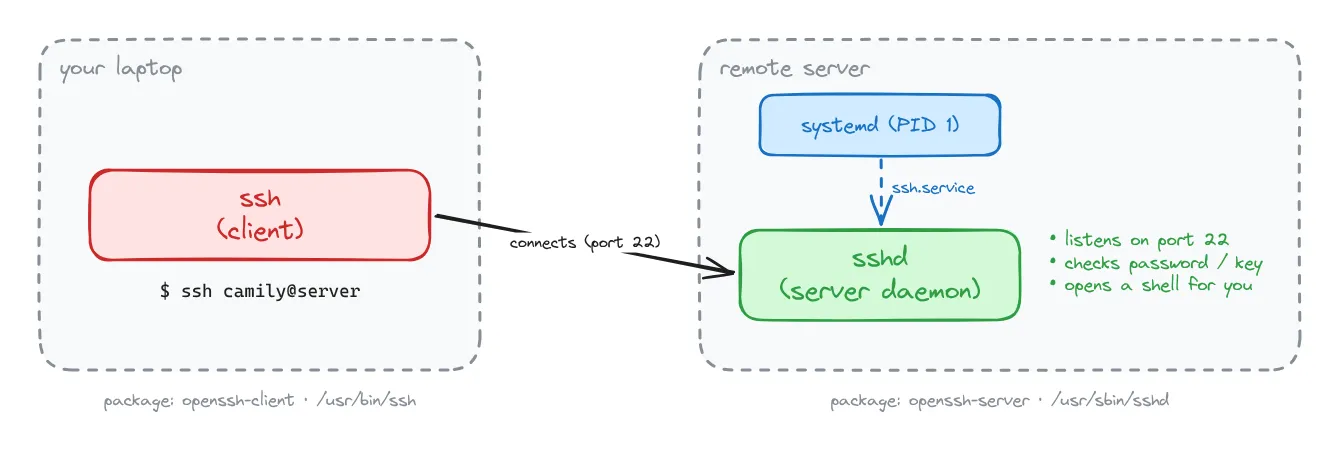
But notice that ssh and sshd are two different programs, even though both are part of SSH. ssh is the client: it runs on the machine that initiates the connection, such as your host. sshd is the server daemon: it runs on the machine accepting SSH connections and waits in the background for clients to connect.
A machine can have both programs installed, so depending on the situation, it can act as an SSH client, an SSH server, or both.
In this example, ssh is the client running on the host machine, while sshd is the server daemon running on the remote machine.
ssh |
sshd |
|
|---|---|---|
| Role | client | server (daemon) |
| Where it runs | on your machine | on the remote machine |
| What it does | connects to another machine | waits for connections and accepts them |
| How it runs | you run it when you need it, then it exits | runs in the background all the time, started by systemd |
| Binary | /usr/bin/ssh |
/usr/sbin/sshd |
| Package (Debian/Ubuntu) | openssh-client |
openssh-server |
For example, when you type:
ssh camily@serverthe ssh process on your laptop connects to the sshd daemon on the server, which checks your password or key and opens a shell for you.
That’s why I like SSH as an example: it shows a program, a process, a daemon, a service and a unit, each one with a slightly different name.
systemd units and its relation to services
All the resources and objects that systemd manages are represented through the abstraction of a unit. A unit is the basic management object in systemd, and different unit types represent different kinds of system resources or behaviors. A service is only one of them.
Each unit type has a specific purpose. For example, a .service unit describes a service, a .timer unit represents scheduled activation, and a .mount unit represents a filesystem mount.
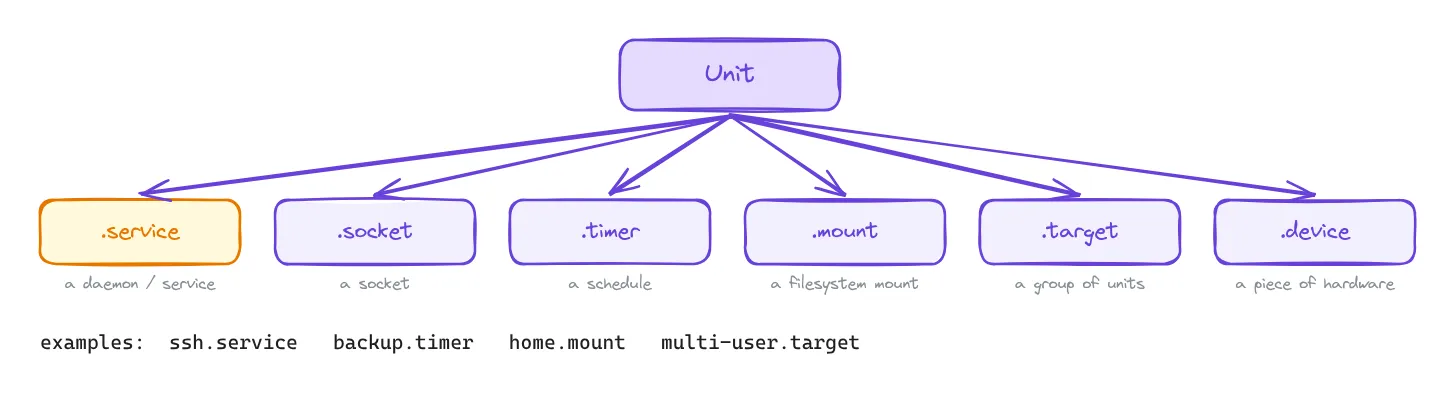
Most units are defined by unit files, which are configuration files named name.type, where the extension tells you the unit type:
ssh.service
backup.timer
home.mount
multi-user.target
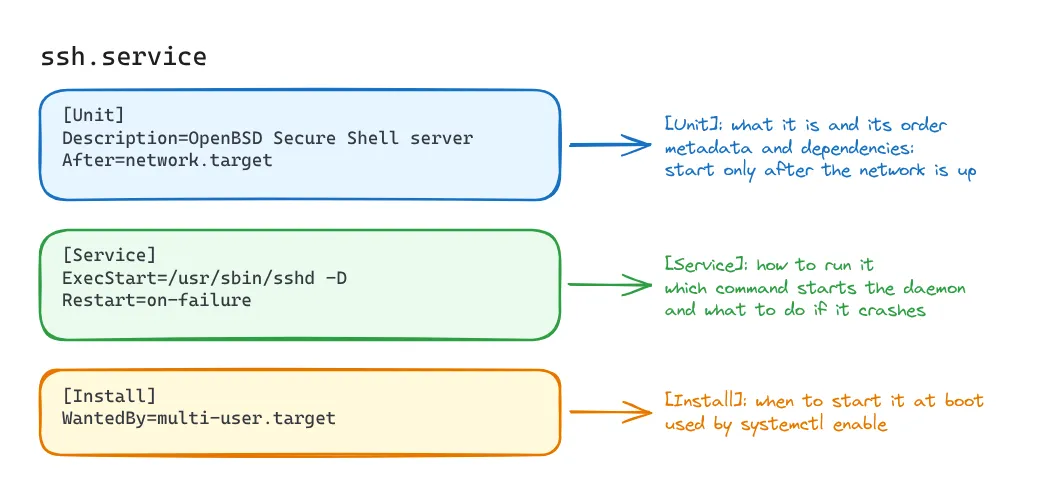
To declare a service unit configuration file, we can do something like this:
[Unit]
Description=OpenBSD Secure Shell server
After=network.target

[Service]
ExecStart=/usr/sbin/sshd -D
Restart=on-failure

[Install]
WantedBy=multi-user.target
Each section has a different job:
[Unit]describes the unit and its dependencies. In other words, it contains general information about the unit and defines its relationships or dependencies with other units.[Service]says how to run the daemon. In other words, it describes howsystemdshould start, stop, restart, and manage the service process.[Install]defines how the unit should participate in boot when enabled. In other words, it describes how the unit should be connected to other units when we runsystemctl enable, for example throughWantedBy=multi-user.target.
Unit files usually live in two main places inside the Linux distribution:
-
/lib/systemd/system/or/usr/lib/systemd/system/— this is where unit files installed by packages usually live, such asssh.service. -
/etc/systemd/system/— this is where your own configuration lives, including units you create and overrides for existing ones.
The important thing to know is that files under /etc/systemd/system/ take priority over the package-provided versions.
This lets you customize how a service behaves without editing the original unit file installed by the package. That is useful because package updates may replace files under /usr/lib/systemd/system/, while your local configuration stays separate.
For example, when working with Vagrant, we may want a service to run inside the VM, such as SSH, a web server, or our own application.
We might want that service to start automatically when the VM boots, wait until the network is ready, run a specific command, or restart if it crashes.
If we change the service configuration by editing its unit file, systemd will still use the configuration it already has loaded. It will not automatically notice that the file changed or start using our customized version until we tell it to reload the unit files.
So we need a way to tell it:
“Hey, the unit configuration changed. Read it again.”
For that, we can use:
sudo systemctl daemon-reloaddaemon-reload tells systemd to reload its unit files and update the configuration it knows about.
This is actually where I started wondering about systemctl command.
While working with Vagrant, I kept running commands like:
systemctl daemon-reload
systemctl status ssh
systemctl restart ssh
and at some point the obvious question appeared: what exactly is systemctl doing here?
Services are being managed by systemd, and units describe how those services should be handled. But there still needs to be some way for us to send instructions to that manager, in this case the systemd
If we want a service to start, stop, restart, or simply tell us what state it is in, how do we ask systemd to do that?
How to interact with services?
That is what systemctl is for.
systemctl is the CLI we use to interact with systemd.
A CLI itself is not doing the underlying work. Instead, it sends a request to a manager, and that manager is responsible for controlling the actual resources. At a high level, it follows the same pattern as tools like kubectl or the Docker CLI.
In this case, systemctl sends commands to systemd, and systemd manages the units behind them.
`
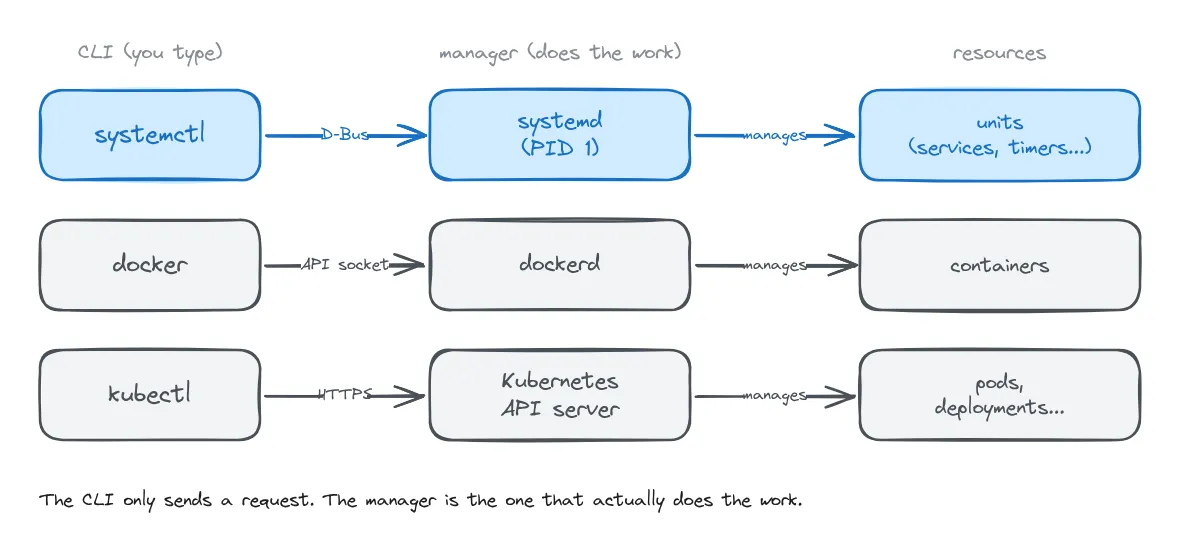
At this point, we already have all the pieces: a daemon (sshd), a service (SSH), a unit (ssh.service), and a way to interact with systemd to manage them.
Since many services are implemented by long-running daemon processes, using systemctl basically means controlling their lifecycle: starting them, stopping them, restarting them, or simply checking what state they are in.
That is exactly what systemctl gives us:
sudo systemctl start ssh     # start the service now
sudo systemctl stop ssh      # stop it
sudo systemctl restart ssh   # stop it and start it again
systemctl status ssh         # is it running? also shows the latest logs
Those commands define what should happen to the service right now: start it, stop it, restart it, or simply check its current state.
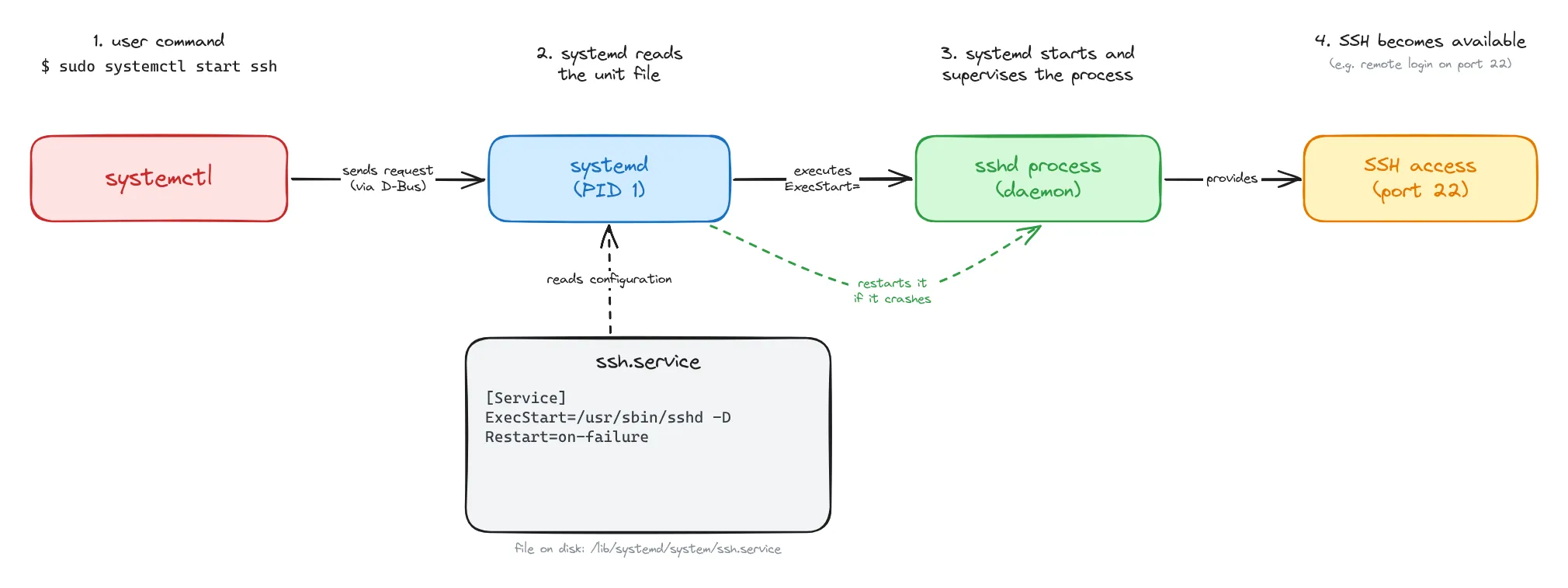
Putting it all together, this is what happens when you start the SSH service:
But there is another question we also need to answer:
What should happen to this service when the machine starts again?
This becomes especially important when we are working with something like Vagrant. Every time we bring a VM up, the guest operating system has to start again.
That startup process is what we call boot.
The machine starts, the Linux kernel is loaded, systemd starts as PID 1, and then the rest of the userspace system begins to come up.
And now we have a new problem.
If I run:
systemctl start sshonly changes what is happening right now.
The SSH service starts, great.
But what happens the next time we destroy, restart, or bring the VM up again?
Do I have to manually run systemctl start ssh every single time? Or should SSH start automatically?
So there is another kind of state we need to care about: the boot state. It defines what should happen to the service when the system boots again. In other words, it tells systemd whether that service should be started automatically during boot.
And this is exactly why we have enable and disable:
sudo systemctl enable ssh         # start at boot
sudo systemctl disable ssh        # don't start at boot
sudo systemctl enable --now ssh   # both: enable it and start it now
To understand what enable actually does, we need to introduce another kind of systemd unit: a target.
A target is basically a unit that groups other units together around a certain system state or purpose.
For example, multi-user.target represents a normal multi-user system state where the machine has finished most of its boot process and services such as networking, SSH, cron, and other background services can be running.
So instead of imagining the boot process as one giant list of commands executed from top to bottom, it is better to think of systemd as activating units and following their dependencies until the system reaches a desired target.
And now the [Install] section from our service unit starts to make more sense:
[Install]
WantedBy=multi-user.target
This tells systemctl:
When this service is enabled, associate it with
multi-user.target.
So when we run:
sudo systemctl enable sshsystemctl creates the appropriate symbolic links so that ssh.service becomes part of the dependency structure associated with multi-user.target.
Then, the next time the system boots and systemd activates multi-user.target, ssh.service can be pulled in as part of that process.
So we can think about a service as having two different kinds of state: its runtime state and its boot state.
The important thing to keep in mind is that start and enable are different operations.
start tells systemd to run the service now.
enable configures the service to be started during boot.
This also explains why a service can be both:
active + disabled or
inactive + enabledAt first, that sounds a little weird.
But it makes sense once we remember that those two states describe different things.
A service can be running right now without being configured to start again during the next boot.
And a service can be configured to start during boot while still being inactive right now.
Alright.
But what if I start a service and it fails? How can I check the runtime state?
What is the service doing? Debugging services
The first thing we can do is ask systemd for the current state of the service:
systemctl status sshThis tells us whether the service is active, inactive, failed, or in some other state, and also shows some recent information about what happened.
But knowing that a service failed is not always enough. We also want to know why it failed. For that, systemd has another component called systemd-journald.
systemd-journald is a daemon that runs in the background and collects log messages from different parts of the system, including services managed by systemd.
Instead of every service necessarily writing its output into its own log file, many services send their logs to the system journal, which is the log storage maintained by journald.
So we have two different things here:
systemd-journald is the daemon that collects and stores the logs.
journalctl is the CLI we use to read and query those logs.
For example:
journalctl -u ssh      # all the logs of ssh.service
journalctl -u ssh -f   # follow new logs in real time
The -u option means unit, so this command shows the journal entries associated with ssh.service.
The -f option means follow, which lets us watch new log entries as they are generated.
So, in the same way that systemctl is the CLI we use to interact with systemd, journalctl is the CLI we use to interact with the logs collected by systemd-journald.
And suddenly those weird commands I kept seeing inside my Vagrant VM start to make a lot more sense.
Sure there is a lot of content to talk about systemd, but I will let space for other posts.
Thank you!
~ Cami
References
https://systemd.io/ https://www.freedesktop.org/software/systemd/man/latest/systemd.html https://www.freedesktop.org/software/systemd/man/latest/systemd.unit.html https://www.freedesktop.org/software/systemd/man/latest/systemd.service.html https://www.freedesktop.org/software/systemd/man/latest/systemd.special.html https://www.freedesktop.org/software/systemd/man/latest/systemctl.html https://www.freedesktop.org/software/systemd/man/latest/journalctl.html https://wiki.archlinux.org/title/Systemd https://en.wikipedia.org/wiki/Systemd https://man.openbsd.org/sshd